

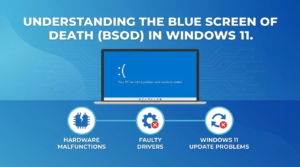
Understanding the Blue Screen of Death (BSOD) in Windows 11
The Blue Screen of Death (BSOD) in Windows 11 is an unexpected system crash that can severely disrupt your work. Recognized for its dreaded moniker, the BSOD signifies a serious error that prevents Windows from operating correctly. This often leads to a sudden halt and a blue screen displaying a stop code error, which can occur due to various factors.
Common causes include hardware malfunctions, faulty drivers, and Windows 11 update problems. Understanding these Windows 11 errors is crucial for BSOD troubleshooting, as it helps in identifying the root of the problem. While the precise stop code provides insights into the issue, the overall occurrence of a Windows 11 system crash can be minimized with preventive measures and timely updates.
If you’re frequently encountering this error, you might want to explore detailed Windows 11 BSOD solutions before proceeding with long-term fixes. For more on handling Windows 11 errors, check out common Windows 11 bugs and their fixes. Additionally, How-To Geek’s article on BSOD fixes provides an external perspective on managing such issues effectively.
Common Causes of BSOD in Windows 11
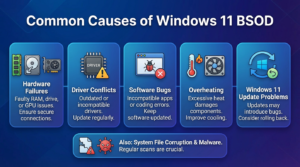
The Blue Screen of Death (BSOD) in Windows 11 can be triggered by a range of common issues. Understanding these root causes is the first step in successfully undertaking BSOD troubleshooting and preventing further disruptions. Below, we outline the typical culprits behind these frustrating Windows 11 errors.
- Hardware Failures: Faulty RAM or issues with hard drives and graphics cards can cause your system to crash. Ensuring hardware components are securely connected and properly functioning is crucial for resolving BSOD issues.
- Driver Conflicts: Outdated or incompatible drivers often lead to BSOD errors. Regular driver updates and ensuring compatibility with new system updates can help mitigate Windows 11 system crashes.
- Software Bugs: Applications with coding errors or those incompatible with Windows 11 could lead to unexpected shutdowns. Keeping your software up-to-date is vital for maintaining system stability.
- Overheating: Excessive heat can impair components and trigger a BSOD. Implementing effective cooling solutions can prevent Blue Screen of Death errors caused by thermal issues.
- Windows 11 Update Problems: Occasionally, updates may introduce bugs. In such cases, rolling back updates might be necessary. Check out our guide on common Windows 11 issues and solutions for more insights.
In addition, system file corruption and malware can also lead to Blue Screen of Death occurrences, reinforcing the importance of regular system scans. For further reading on BSOD troubleshooting and repair techniques, consider Microsoft’s official troubleshooting guide.
Preparing Your PC: Back Up Important Data
Before diving into any BSOD troubleshooting, it’s crucial to back up your data. Sudden system failures, like a Windows 11 Blue Screen of Death, can jeopardize crucial files. Protect your documents, photos, and important information by ensuring they are safely stored and accessible, irrespective of a potential Windows 11 crash.
Here are some steps to effectively back up your data:
- External Storage: Use external drives or USB sticks to manually save your essential files.
- Cloud Services: Services like Google Drive and OneDrive offer seamless synchronization across devices, which provides an additional layer of security.
- System Image: Creating a system image allows you to restore your PC to a prior state in case all BSOD solutions fail.
Remember, having a reliable backup in place not only aids in resolving BSOD issues but also helps prevent any additional data loss from unforeseen Windows 11 update problems. Explore this detailed guide by PCMag for insights into repairing Windows systems. By backing up effectively, you can focus on resolving your Windows 11 errors without the stress of permanent data loss.
Initial Steps: Restart Your Computer and Check Connections
Experiencing a Blue Screen of Death (BSOD) on Windows 11 can be alarming, but some basic steps can often resolve the issue effectively. A simple restart might be all it takes to clear temporary glitches causing the BSOD. Before diving into complex BSOD troubleshooting, ensure to reboot your system as this often resolves minor Windows 11 errors that lead to crashes.
While restarting, it’s crucial to verify all hardware connections. Loose or faulty connections are a common oversight that can trigger stop code errors in Windows 11. Check the cables for your monitor, keyboard, and external storage devices to ensure they are securely connected. If applicable, ensure that RAM and internal components are properly seated in their slots. These preventive measures can be key in addressing Windows 11 system crashes and might help in stopping the issue at its root.
Moreover, regular maintenance of your PC and staying updated with patches can prevent Blue Screen of Death issues caused by Windows 11 update problems. For more detailed insights on keeping your system bug-free, exploring additional Microsoft Support resources can be beneficial.
Running Windows 11 in Safe Mode to Troubleshoot BSOD
Encountering a Blue Screen of Death (BSOD) can be alarming, but running Windows 11 in Safe Mode is a reliable way to troubleshoot BSOD issues. Safe Mode starts your operating system with minimal drivers and services, making it easier to diagnose root causes behind the Windows 11 system crash. Here’s how to do it:
- Boot into Safe Mode: Restart your PC while holding the Shift key, select Advanced Startup, navigate to Troubleshoot > Advanced Options > Startup Settings, and finally click Restart. Press F4 or 4 to enter Safe Mode.
- Identify Third-Party Software Conflicts: In Safe Mode, you can check for software causing Windows 11 errors by uninstalling recent programs or updates.
- Check for Hardware Issues: Inspect hardware drivers, as conflicting drivers can trigger BSOD troubleshooting necessity.
Safe Mode can be a crucial step in resolving BSOD issues and preventing future Blue Screen of Death incidents. For comprehensive steps on managing recent Windows 11 errors, visit this page on Windows 11 bug fixes. Furthermore, the official Windows 11 support page provides detailed insights into Safe Mode usage and system repairs.
Using Windows Update to Fix BSOD Errors
Keeping your operating system updated is a crucial step in BSOD troubleshooting. Windows Updates often contain critical patches and drivers that can repair Windows 11 crashes and prevent the Blue Screen of Death. To ensure your system runs smoothly, regular updates help in resolving BSOD issues and other stop code errors in Windows 11.
To use Windows Update to fix BSOD errors, follow these steps:
- Open Settings from the Start menu.
- Go to Update & Security and click on Windows Update.
- Click on Check for updates and install any available updates.
- Restart your computer after updates have been installed.
This method is beneficial in addressing Windows 11 update problems and enhancing system stability. Regular updates are key to prevent Blue Screen of Death issues by ensuring all software components are working in harmony. For more detailed fixes on Windows 11, you might find our article on common Windows 11 bug fixes insightful.
For additional support, consider visiting How-To Geek’s guide on fixing BSOD errors for comprehensive answers.
Updating Drivers: A Crucial Step to Resolve BSOD
For Windows 11 users facing a Blue Screen of Death (BSOD), updating drivers can be an essential step in resolving the issue. Drivers act as intermediaries between the operating system and hardware components, and outdated or incompatible drivers may lead to Windows 11 errors and ultimately trigger a system crash.
Here are steps to update your drivers and potentially prevent Blue Screen of Death occurrences:
- Use Windows Update: Navigate to Settings > Update & Security > Windows Update and click on “Check for updates.” Windows will automatically search for and install available driver updates.
- Visit Manufacturer’s Website: Sometimes, the latest drivers are not available via Windows Update. Visit the hardware manufacturer’s website to download the latest drivers.
- Device Manager: Open Device Manager, right-click on any hardware generating issues, select “Update driver,” and follow the prompts to search for updated drivers.
In certain cases, driver updates can cause compatibility issues, resulting in Windows 11 update problems. It’s advisable to create a restore point before updating drivers.
For further guidance on BSOD troubleshooting and Windows 11 BSOD solutions, see this detailed guide by How-To Geek.
Running System File Checker and DISM Tools
Resolving the Blue Screen of Death (BSOD) in Windows 11 can often require deeper system checks, such as leveraging the System File Checker (SFC) and Deployment Imaging Service and Management Tool (DISM). These tools help identify and fix any corrupted system files that may be causing the Windows 11 BSOD.
To begin, run the System File Checker:
- Open the Command Prompt as an administrator by typing cmd in the search bar, right-clicking, and selecting Run as administrator.
- Type
sfc /scannowand press Enter. This will initiate a scan, detecting and potentially repairing any corrupted files that are causing Windows 11 system crashes.
If the SFC scan doesn’t resolve the BSOD issues, proceed with the DISM scan:
- While still in Command Prompt, type
DISM /Online /Cleanup-Image /RestoreHealthand press Enter. - This command utilizes Windows Update to repair any corrupt system image files, ensuring the system is free from stop code errors Windows 11 might present.
For a more comprehensive guide beyond just system file repairs, explore our extensive Windows 11 BSOD solutions to mitigate future errors.
For additional insights, refer to Microsoft’s official documentation on troubleshooting Blue Screen errors.
Checking for Hardware Issues Causing BSOD
One of the significant factors behind the Blue Screen of Death (BSOD) in Windows 11 can be hardware issues. Faulty hardware components, such as RAM, hard drive, or graphics card, can lead to system crashes and various stop code errors in Windows 11. Addressing these issues is crucial to repair Windows 11 crashes effectively.
Start by examining your computer’s RAM. Use Windows Memory Diagnostic Tool, a built-in utility, to run tests and detect any memory-related issues. If errors are found, consider replacing the faulty RAM modules to prevent the Blue Screen of Death.
[Image placeholder for Windows Memory Diagnostic Tool process]
Next, check for hard drive problems using Command Prompt. Run the command chkdsk /f, which helps resolve BSOD issues by fixing disk errors. Also, ensure that your hardware drivers are up-to-date, as outdated drivers may cause Windows 11 system crashes. For comprehensive driver updates, visit your device manufacturer’s official site.
For more insights on keeping your systems optimized, explore our extensive guide on Windows 11 bug fixes.
Additionally, you might want to check an authoritative resource like Lifewire’s guide on fixing BSOD for further troubleshooting steps.
Uninstalling Recent Software or Windows Updates
If you’re experiencing the Blue Screen of Death (BSOD) on your Windows 11 system, it might be linked to recent software installations or updates. These changes can sometimes cause conflicts leading to system crashes or errors. Here’s how you can troubleshoot Windows 11 BSOD issues by uninstalling recent updates or software:
First, to uninstall a recent Windows update, navigate to Settings > Update & Security > Windows Update. Click on View update history and then Uninstall updates. Locate the most recent updates that might be causing Windows 11 errors, select them, and choose Uninstall.
For uninstalling recent software, go to Settings > Apps > Apps & Features. Here, you can find the software installed on your system. Sort by installation date to identify newly added programs. Select the suspected application causing the stop code errors in Windows 11 and click Uninstall.
Consistently updating and checking for software compatibility can help prevent Blue Screen of Death incidents. For more Windows 11 BSOD solutions and troubleshooting tips, explore our detailed guide on windows-11-bug-fixes-2025-common-issues-solutions to repair Windows 11 crashes effectively.
For further detailed information on resolving BSOD issues, you might also refer to this Microsoft Support page for expert advice and solutions.
Using System Restore to Solve BSOD Problems
System Restore is a powerful tool to remedy the dreaded Blue Screen of Death (BSOD) in Windows 11. This feature allows you to revert your computer to a previous state, effectively undoing recent changes that may have triggered errors. It’s particularly useful for BSOD troubleshooting, as many users have found this Windows 11 BSOD solution effective when dealing with stop code errors.
To use System Restore to resolve BSOD issues, follow these steps:
- Press the Windows key and type “Create a restore point”. Select the first result to open the System Properties window.
- Navigate to the “System Protection” tab and click on “System Restore”.
- Follow the wizard to choose a restore point prior to when the BSOD errors began occurring.
- Complete the process and restart your computer to see if this Windows 11 system crash issue is resolved.
A successful System Restore can repair Windows 11 crashes by removing recent updates or changes causing instability. For more tips on managing Windows-related issues, check out our article on fixing Windows 11 update problems. For further details on using System Restore, refer to Microsoft’s official guide on System Restore.
When to Seek Professional Help for Persistent BSOD Issues
While troubleshooting the Blue Screen of Death (BSOD) on your own can often resolve minor issues, there are instances where professional help becomes necessary. If persistent Windows 11 BSOD solutions evade you despite your best efforts, it might be time to consult with an expert. Recognizing when to seek assistance is crucial in preventing further damage to your system.
Consider seeking professional help if you encounter any of the following:
- Unresolvable Recurrence: Even after applying common BSOD troubleshooting methods, the errors keep resurfacing.
- Complex Error Codes: You’re facing obscure stop code errors in Windows 11 that require advanced technical knowledge.
- Hardware Concerns: Suspected issues with hardware components that could lead to a Windows 11 system crash.
- Constant Windows 11 Crashes: Regular system crashes without a discernible pattern or obvious trigger through regular checkups.
For those interested in exploring further ways to stabilize their systems, you might find it beneficial to read our detailed article on Windows 11 Bug Fixes 2025: Common Issues & Solutions. Additionally, Microsoft offers a comprehensive guide on troubleshooting blue screen errors that could provide further insights.
Remember, professional intervention can help swiftly identify and repair Windows 11 crashes, ensuring your device returns to optimal performance.