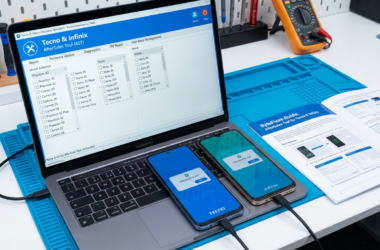




Introduction to SP Flash Tool: What is it and Why You Need it?
The SP Flash Tool, also known as the Smartphone Flash Tool, is an indispensable resource for users looking to flash MediaTek devices effectively. Designed specifically for MediaTek chipsets, this MediaTek flashing tool allows users to install new firmware, update software, and even unbrick devices when they encounter issues. Whether you’re an advanced technician or a tech enthusiast, understanding how to use SP Flash Tool for MTK devices can revolutionize the way you manage your device’s software.
One of the primary reasons you might want to download SP Flash Tool is its ability to handle various device scenarios through its robust set of features. From executing firmware updates to recovering bricked smartphones, it offers a comprehensive solution.
- Flash MediaTek devices with new firmware versions.
- Troubleshoot SP Flash Tool issues for smoother updates and installations.
- Access extensive SP Flash Tool guides and tutorials online for better use understanding.
Moreover, if you are interested in learning more about tools similar to SP Flash Tool, you might find our UnlockTool guide helpful. For professional/authorized servicing use, this tool comes highly recommended.
For further reading and resources on flashing tools, you can refer to this external guide from Android Authority.

Understanding MediaTek Devices and the Need for Flashing Firmware
MediaTek devices, including smartphones and tablets, are known for their affordability and reliable performance. However, like any other technology, they may require periodic maintenance or upgrades to ensure optimal functionality. This is where flashing firmware comes into play. Firmware flashing refers to the process of updating or reinstalling the software that controls your device’s hardware. It’s a crucial step when troubleshooting persistent issues, upgrading to a new version, or even reviving a device that has become unresponsive due to software errors.
Utilizing the SP Flash Tool is an official and reliable method for handling MediaTek smartphone flashing. This tool acts as a bridge between your device and the firmware you wish to install, ensuring a seamless update process. Aside from its primary function as a MediaTek flashing tool, SP Flash Tool offers various features such as formatting, reading and writing partitions, and performing memory tests. These capabilities make it an indispensable tool for those who need to flash MediaTek devices professionally.
For those looking to enhance their technical skills, exploring UnlockTool provides additional insights into powerful flashing methods. Meanwhile, this comprehensive SP Flash Tool guide offers further authoritative insights into its usage. Whether you’re aiming to troubleshoot SP Flash Tool issues or looking to expand your knowledge, leveraging the right resources is key to successful MediaTek device management.

Step-by-Step Guide to Downloading and Installing SP Flash Tool
To effectively install SP Flash Tool, follow these detailed steps to ensure a smooth setup. The SP Flash Tool is an essential utility for users aiming to flash MediaTek devices, offering stability and reliability.
Step 1: Download SP Flash Tool
First, navigate to an official source to download SP Flash Tool. Ensure the tool is compatible with your operating system to prevent errors during installation. A legitimate and updated version ensures a secure flashing experience, vital for safe MediaTek smartphone flashing. Avoid unofficial links to maintain your device’s safety.
Step 2: Install Necessary Drivers
Before launching the tool, install the required USB VCOM drivers for MediaTek devices. Proper installation of these drivers is crucial for successful device recognition by your computer. These drivers act as a bridge, enabling communication between your MediaTek device and SP Flash Tool.
Step 3: Extract the Downloaded Package
Once downloaded, extract the SP Flash Tool package. Use reliable extraction software to avoid any file corruption. Ensure all the contents are in a separate, easily accessible directory to streamline the installation process.
Step 4: Launch SP Flash Tool
Navigate to the extracted folder and locate the SP Flash Tool executable file. Run the application as an administrator to initiate the installation. This step is crucial, as administrative rights ensure all the necessary files are properly installed, preparing the MediaTek flashing tool for use.
For further insights on professional servicing solutions, check out UnlockTool: The 2025 Guide to Powerful Flashing for MTK and Qualcomm devices.
For a comprehensive guide, consider visiting an authority source like MediaTek’s official website to learn more about SP Flash Tool features and updates. These resources provide invaluable information for successful MTK device management.
With the installation process complete, you’re now prepared to use SP Flash Tool for MTK devices, enabling you to flash smartphones and troubleshoot with ease.
Preparing Your MediaTek Device for Flashing: Essential Precautions
Before you begin the MediaTek flashing process with SP Flash Tool, it is crucial to prepare your device and ensure a smooth transition. Proper preparation not only safeguards your data but also mitigates potential device malfunctions during the flashing process. Follow these essential precautions to get your device ready:
- Backup Your Data: Before using the SP Flash Tool for MTK, ensure you back up all important data. This includes contacts, messages, photos, and apps, as flashing will erase all personal data.
- Ensure Battery Life: Charge your MediaTek device to at least 60% to prevent interruptions. A sudden battery drop during the process could lead to a bricked device.
- Check USB Connectivity: Make sure your USB cable is in good condition to maintain a secure connection between your PC and your device throughout the flashing process.
- Install Necessary Drivers: To allow your computer to recognize the device correctly, install the latest MediaTek USB drivers. This is crucial for a successful flash.
For those exploring more advanced options in device servicing, you might be interested in discovering UMT Dongle: The Ultimate Multi-Tool for Qualcomm & MTK, which offers broader device support.
For a deeper understanding of the SP Flash Tool and its features, visit SPFlashToolDownload.com for comprehensive guides and support. Ensure your use of these tools remains within the bounds of professional or authorized servicing contexts.
How to Connect Your Device to SP Flash Tool: A Comprehensive Guide
Connecting your device to the SP Flash Tool is a crucial step in flashing MediaTek devices. This MediaTek flashing tool allows you to perform various operations such as firmware updates and repairs. Before you begin, ensure that you have installed all necessary drivers and have access to a computer with a USB port.
Steps to Connect Your Device
- Install SP Flash Tool: If you haven’t already, install SP Flash Tool on your PC by downloading it from a trusted source.
- Prepare Your Device: Turn off your MediaTek device. Ensure the battery is charged above 50% to prevent interruptions.
- Connect Via USB: Use a high-quality USB cable to connect your device to the computer. Avoid using USB hubs for a more stable connection.
- Launch SP Flash Tool: Open the SP Flash Tool and select the appropriate scatter file for your device’s firmware. This is a crucial step in the SP Flash Tool guide.
For a detailed SP Flash Tool tutorial, you can visit the official forums or other professional resources. Remember, this tool is recommended for professional/authorized servicing use to ensure device safety and functionality. For more on smartphone servicing, you might find our guide on UnlockTool useful.
For additional details, you can refer to the comprehensive SP Flash Tool official site for resources and troubleshooting tips.
Detailed Instructions on Flashing Firmware Using SP Flash Tool
Flashing firmware using the SP Flash Tool can be a straightforward process when executed correctly, but it’s essential to follow each step with precision. This guide will walk you through the entire process, leveraging the SP Flash Tool as your trusted MediaTek flashing tool for updating or reinstalling the firmware on your MTK device.
Step-by-Step Guide to Flash MediaTek Devices
- Download SP Flash Tool: Begin by ensuring you have the latest version of the SP Flash Tool. You can download it from reputable sources online for official and safe usage.
- Install Necessary Drivers: Go to the SP Flash Tool guide and install the MediaTek USB drivers on your PC to enable proper communication between your computer and the device.
- Choose Firmware: Obtain the appropriate firmware for your specific device. Incorrect firmware can lead to serious malfunctions, so confirm compatibility with your MediaTek device.
Using SP Flash Tool for MTK Device Firmware Update
- Load Scatter File: Open SP Flash Tool on your PC and click on “Scatter-loading”. Locate the scatter file in the firmware folder. This file contains essential instructions for flashing.
- Select Flashing Option: Choose the right download mode such as “Download Only” or “Firmware Upgrade” depending on whether you are flashing or upgrading.
- Connect Device and Flash: Turn off your device. Connect it to the PC using a USB cable. Click on “Download” to begin the flashing process.
- Completion and Reboot: Once completed, a green check mark will appear, indicating success. Disconnect and reboot your device to finalize.
For further insights into professional software tools similar to SP Flash Tool, you might find TFM Tool Pro useful. Additionally, for authorized servicing use, you can learn more about the SP Flash Tool features and official usage guidelines. Remember, maintaining accuracy and caution is key to a successful firmware flash.
Troubleshooting Common Issues with SP Flash Tool
Using the SP Flash Tool can be seamless, but like any software, issues may arise during the flashing process. Understanding these common problems can significantly ease the troubleshooting process when you use the MediaTek flashing tool. Below, we outline typical issues and solutions related to SP Flash Tool.
-
Device Not Recognized
If your device isn’t recognized by the SP Flash Tool, ensure that USB drivers are properly installed on your computer. Often, this involves installing MediaTek VCOM drivers. Additionally, try using a different USB cable or port, as faulty connections can hinder recognition. For further guidance, consider exploring our detailed UnlockTool article for tips applicable to MediaTek devices.
-
Brom Error
A common error encountered is the Brom error, which can occur for various reasons such as incorrect scatter files or improper firmware. Verify the scatter file for compatibility with your device and ensure all firmware files are correctly extracted and selected.
-
Stuck at Red Bar
If the flashing process gets stuck at the red bar, this might indicate a communication problem between the flash tool and the device. Ensuring that the correct driver is installed and the tool is running with administrative privileges can resolve this. Don’t forget to disable any antivirus program as it might disrupt the process.
For further comprehensive insights on how to troubleshoot issues effectively, you might want to check this SP Flash Tool guide by AskVG. For professional and authorized servicing use, always ensure to download the SP Flash Tool from an official source and follow manufacturer guidelines.
Safety Tips for Flashing Your MediaTek Device
Flashing a MediaTek device with the SP Flash Tool is a task that requires caution and precision. As you embark on this journey, adhere to the following safety tips to ensure a seamless experience.
- Backup Your Data: Before you use SP Flash Tool for MTK, make sure to back up all important data. Flashing will erase everything on your device.
- Ensure Proper Drivers: Install the necessary USB drivers for your MediaTek smartphone to ensure proper communication between your device and computer.
- Charge Your Device: A device with a low battery can shut down mid-process, rendering it unusable. Ensure your device is at least 70% charged.
- Follow the SP Flash Tool Guide: Always follow a comprehensive SP Flash Tool tutorial or guide. This reduces the likelihood of errors significantly.
- Use the Official Tools: Only download SP Flash Tool from the official MediaTek flashing tool website or trusted sources for professional/authorized servicing use.
- Beware of Data Corruption: Ensure that the firmware files are from reliable sources to prevent data corruption during the flashing process.
By adhering to these precautions, you are much more likely to have a successful flashing experience. For more insights on dealing with smartphones, check out our guide on using UnlockTool for powerful flashing. Additionally, consider reading this external guide for further information on flashing with SP Flash Tool.
Benefits of Using SP Flash Tool for MediaTek Smartphones
When it comes to flash MediaTek devices, SP Flash Tool stands out as a reliable and effective solution. This MediaTek flashing tool offers several advantages for both professional service providers and advanced users looking to optimize their smartphones. Let’s explore some key benefits:
- Comprehensive Flashing Capabilities: SP Flash Tool allows users to flash stock firmware, custom ROMs, and recovery files effortlessly. It supports all MediaTek chipsets, ensuring a wide range of compatibility for various models.
- Device Unbricking: If your MediaTek smartphone encounters software issues or becomes bricked, SP Flash Tool can be instrumental in restoring it to its original state. This ability to troubleshoot SP Flash Tool-related issues makes it invaluable for professional repairs.
- Partition Management: The tool enables users to read, write, or backup specific partitions of the device memory. This is particularly useful in managing data and storage more efficiently.
- User-Friendly Interface: With its intuitive design, the SP Flash Tool guide simplifies complex flashing processes, making it accessible even for beginners willing to explore MediaTek smartphone flashing.
While SP Flash Tool is a powerful tool, it is essential to use it carefully to avoid any potential risks. For a broader understanding of such tools, consider exploring our article on UnlockTool: The 2025 Guide to Powerful Flashing. For more details and guidelines on SP Flash Tool, you can refer to credible sources like the official guide on Android MTK.
Frequently Asked Questions About SP Flash Tool
Using the SP Flash Tool can raise several questions, especially for users who are new to MediaTek smartphone flashing. This section aims to address some of the most common queries about the MediaTek flashing tool to enhance your understanding and ensure effective usage.
What is SP Flash Tool?
SP Flash Tool is the official flashing tool for MediaTek devices, enabling users to flash stock firmware, update their operating systems, and recover bricked devices. Its range of advanced SP Flash Tool features makes it indispensable for professional and authorized servicing of MTK devices.
How to Install and Download SP Flash Tool?
To download SP Flash Tool, visit the official site for an authentic and secure version. Follow the comprehensive step-by-step SP Flash Tool guide provided to correctly install and set it up on your PC. This process ensures readiness to flash MediaTek devices safely.
Can I use SP Flash Tool for MTK without technical expertise?
While a basic understanding of flashing is beneficial, the SP Flash Tool tutorial included in various online guides can help beginners. However, it’s recommended for professional use to avoid device damage.
How to Troubleshoot SP Flash Tool Errors?
Common errors during MediaTek smartphone flashing can be resolved by ensuring the correct installation of drivers, using the right firmware, and following troubleshooting steps. For a deeper troubleshooting insight, you might explore other solutions like Miracle Box Thunder Dongle.
For further reading, check out this comprehensive guide on using SP Flash Tool for successful flashing. These resources will equip you with the necessary knowledge to boldly navigate the process.
SP Flash Tool vs. Other Flashing Tools: What Sets It Apart?
When it comes to flashing MediaTek devices, a plethora of tools are available in the market. However, SP Flash Tool often stands out due to its unique features and user-friendly experience. Understanding how it compares to other tools is crucial for anyone looking to utilize a reliable MediaTek flashing tool.
SP Flash Tool, specifically designed for MediaTek devices, offers a comprehensive suite of features that cater to both beginners and professionals. It is the official flashing tool recommended for MediaTek (MTK), making it a highly trusted option. Here’s what sets it apart:
- Ease of Use: The SP Flash Tool guide and straightforward interface make it easy to download and install SP Flash Tool. This simplifies the flashing process, even for novices.
- Compatibility: It supports multiple flashing operations such as firmware upgrades, downgrades, and device unbricking, making it versatile for various models of MediaTek smartphones.
- Feature-Rich: With features like readback, memory testing, and parameter editing, it provides a full spectrum of functionalities not typically found in other tools.
- Authorized Use: Intended for use in professional or authorized servicing settings, ensuring reliability and authenticity.
For those interested in exploring other tools, you might want to learn about TFM Tool Pro, which is another excellent option for MTK and Qualcomm devices.
For more detailed insights and tutorials, consider checking official resources such as the Android MTK SP Flash Tool guide.
Conclusion: Making the Most of SP Flash Tool for Your MediaTek Device
Utilizing the SP Flash Tool effectively for your MediaTek device can significantly enhance your phone’s performance by facilitating smooth firmware updates and overcoming software issues. This MediaTek flashing tool, when used correctly, serves as a powerful ally, whether you’re looking to flash MediaTek devices or need to troubleshoot SP Flash Tool complications. With a comprehensive SP Flash Tool guide, you can confidently navigate its features to make the most of your MediaTek smartphone flashing experience.
Remember, always ensure that you download SP Flash Tool from official sources to maintain device security and integrity. For professional or authorized servicing use, many other robust tools like UnlockTool provide expansive options for flashing and managing your devices.
By following expert tutorials and staying up-to-date with the latest SP Flash Tool features, you will not only improve your device management skills but also protect your device from unnecessary risks. For additional insights, you can explore more about SP Flash Tool and its applications on websites such as XDA Developers, which offer a wealth of resources and community support.