


Understanding the Android Boot Process
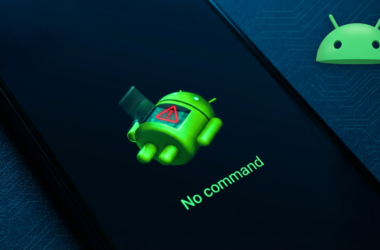
The Android boot process is a complex series of events that occur when you turn on your device. This process is crucial and involves multiple stages that, if disrupted, can leave your Android stuck on the logo screen. Understanding these stages can help you troubleshoot Android issues more effectively.
The boot process starts with the bootloader, a small program that checks for errors and loads the Android operating system. If it encounters issues, such as a corrupted file or software conflict, your phone won’t turn on fully, resulting in an Android frozen screen. Next, the kernel loads, facilitating interactions between hardware and software. This stage can also be a bottleneck if any of the kernel modules are compromised.
Having a clear understanding of the Android boot sequence can help solve Android startup problems by enabling you to identify and fix boot issues. For detailed guidance on dealing with a device that is stuck in an Android boot loop, you might find our Android Guide helpful.
For more technical insights into this process, you can visit reputable sources like Android Developers.
Common Reasons Your Android Phone is Stuck on the Logo
Experiencing your Android phone stuck on the logo can be frustrating, leaving you wondering, “Why does my Android won’t start?” Here are some common reasons for this issue, which can help you troubleshoot Android and fix boot issues effectively.
- Software Updates: One of the most frequent causes for the Android frozen screen during startup is an incomplete or corrupted software update. An interruption during the process can prevent the system from booting correctly.
- App Conflicts: Sometimes, newly installed apps may conflict with your operating system, resulting in your phone stuck on the Android screen. Ensure that all your apps are compatible with your device’s OS version.
- Insufficient Storage: Having limited storage space can impact the performance and startup efficiency of your phone. It might result in your Android boot loop scenario.
- Hardware Malfunctions: Physical damages or malfunctions in hardware components can cause issues that prevent your phone from booting past the logo screen.
- Corrupted System Files: If essential system files are damaged or missing, it can interfere with the startup process, causing your phone to get stuck on the logo.
For professional instructions on dealing with more complex issues, consider referring to our detailed Android Guide for Bootloop Issues to repair Android startup problems.
For an in-depth understanding of fixing these issues, you might also find this comprehensive guide on Android boot loop fixes useful.

Hardware vs. Software: Identifying the Root Cause
When dealing with an Android stuck on the logo, pinpointing whether the issue is hardware- or software-related is crucial. Understanding the root cause will help you apply the appropriate fix and save time. Software glitches are the most common culprits for an Android boot loop. They can occur due to corrupted system files, failed updates, or third-party apps that interfere with the startup process. There are several steps you can take to troubleshoot Android issues effectively.
Running the device in Android recovery mode is a great starting point. This will allow you to perform actions like wiping the cache or performing a factory reset, which can solve Android startup problems. If the phone won’t turn on even in recovery mode, there might be a hardware issue at play.
On the hardware front, issues could be due to a damaged battery, faulty connections, or compromised internal components. It’s essential to distinguish these by inspecting your device physically and seeing if there’s visible damage or if the device heats up excessively. In situations where Android won’t start due to hardware damage, it is best to seek professional or authorized servicing.
For further insights into Android repair, check out this comprehensive guide on Android boot loop solutions to better understand the potential fixes and preventive measures.

How to Perform a Soft Reset on Your Android Device
When your Android is stuck on the logo screen, performing a soft reset is a useful first step in trying to fix boot issues without risking data loss. A soft reset involves simply restarting the device without affecting any settings or stored data. Sometimes, this simple procedure can resolve issues where the phone won’t turn on properly or is caught in an Android boot loop.
Follow these straightforward steps to perform a soft reset:
- Press and hold the Power button on your Android device.
- Wait until you see a menu or the screen goes blank.
- Release the Power button and wait for the device to reboot.
If your device remains on the Android frozen screen, consider seeking additional troubleshooting solutions. Note that persistent problems may require professional servicing or the use of tools like the exclusive MDMfix Tool for specialized issues.
For further guidance on solving an Android startup problem, you can also refer to this detailed guide from Expert Reviews.
Entering Safe Mode to Troubleshoot Boot Issues
When your Android device is stuck on the logo, entering Safe Mode can help you troubleshoot boot issues effectively. Safe Mode disables third-party applications, allowing your device to run on default settings and help identify if an app is causing the Android boot loop. If your phone won’t turn on normally, entering Safe Mode might be the key to repair Android startup problems.
To enter Safe Mode, follow these steps:
- Hold the power button until you see the power-off icon.
- Press and hold the power off icon until a pop-up prompts you to restart in Safe Mode.
- Tap “OK” to restart your device in Safe Mode.
While in Safe Mode, observe if the issue persists. If your device is not stuck on the Android screen anymore, it indicates a third-party app could be the reason your Android won’t start properly. You can then uninstall recently downloaded apps selectively to solve the Android startup problem.
For more comprehensive steps to fix a similar issue, check out our detailed guide on how to fix a phone stuck in a bootloop. Additionally, consult this Google support article for more on troubleshooting Android devices that refuse to start.
Clearing the Cache Partition for a Fresh Start
One effective way to address an Android stuck on the logo screen is by clearing the cache partition. This can fix boot issues related to corrupted system files and give your device a fresh start. When your Android won’t start, clearing the cache partition should be part of your troubleshooting steps.
The cache partition stores temporary system data and occasionally, this data can become corrupted, leading to boot problems. Here’s how you can do it:
- Turn off your device. If it doesn’t turn off, try holding down the power and volume down buttons simultaneously.
- Enter Android recovery mode by pressing the power and volume up buttons while your device is off. This might vary slightly depending on the model.
- Once in recovery mode, use the volume buttons to navigate to “Wipe Cache Partition” and press the power button to select it.
- Confirm the operation and wait for it to complete.
- Reboot your device and see if the Android frozen screen issue is resolved.
For more detailed solutions, you might want to check our comprehensive guide on fixing a phone stuck in a bootloop.
For professional assistance or authorized servicing, always refer to verified tools. Familiarize yourself with professional utilities like those from Android Developers for robust solutions to solve Android startup problems.
Performing a Factory Reset to Resolve Persistent Problems
When your Android device is stuck on the logo screen, a factory reset can serve as a last-resort solution to fix boot issues that can’t be resolved through other means. This process erases all data but often resolves persistent software problems, such as an Android boot loop or instances where the phone won’t turn on.
To perform a factory reset, follow these steps:
- Power off your device completely.
- Press and hold the appropriate button combination to enter Android recovery mode—typically the Power and Volume Down buttons.
- Once in recovery mode, use the volume buttons to navigate to the “Wipe data/factory reset” option and confirm with the Power button.
- Select “Yes” to confirm and initiate the reset process.
Factory resetting will erase all data on your device, so it’s an excellent time to learn about Factory Reset Protection (FRP) and how to safeguard your data for future use.
If the Android frozen screen persists, professional services may be required. For authorized and professional servicing, ensure the use of appropriate tools.
For further information on how to repair Android startup issues, you can explore trusted resources and guides online.
Using Android Recovery Mode to Fix Boot Issues
When an Android device is stuck on the logo screen, Android Recovery Mode can often be a lifesaver. This built-in system tool is essential for troubleshooting and resolving various boot issues, including the Android boot loop, where the phone won’t turn on past the logo. By accessing the Recovery Mode, users can apply fixes such as clearing the cache partition or performing a factory reset, effectively diagnosing and repairing Android startup problems.
To enter Android Recovery Mode, start by turning off the device. Then, press and hold the power and volume buttons simultaneously. This method may vary slightly based on the phone brand. Once in recovery mode, use the volume buttons to navigate and the power button to select options. Begin by clearing the cache partition to remove potentially corrupted files.

If that doesn’t resolve the issue, a factory reset might be necessary. This option will erase all data, so it’s usually a last resort to resolve issues like the Android frozen screen. For a more in-depth guide on tackling boot loops, you can read our detailed article, How to Fix a Phone Stuck in a Bootloop.
For further reading on how to troubleshoot Android boot issues, check out this comprehensive guide on Android Authority.
Updating Your Android OS to Prevent Future Problems
Keeping your Android OS up to date is a crucial step in ensuring your device does not fall prey to issues such as getting stuck on the Android screen or even facing an Android boot loop. Regular updates not only bring new features but also essential security patches that fix boot issues and system vulnerabilities. Many users often overlook updates, leading to persistent problems like Android frozen screens that could eventually escalate to serious startup malfunctions.
To troubleshoot Android effectively, navigate to your device’s settings under About Phone and check for software updates. Accepting updates promptly can repair Android startup problems and ensure smoother performance. Moreover, an up-to-date system diminishes the chances of encountering scenarios where your phone won’t turn on or when Android won’t start.
Discover more solutions to boot-related challenges by visiting this comprehensive guide on fixing Android boot loops. For professional advice on handling more intricate software repairs, consider consulting authorized service centers. As you stay updated, you also contribute to a safer digital environment by minimizing exposure to potential malware threats—a growing concern highlighted recently in Android’s Security Center.
When to Seek Professional Repair Services
When your Android is stuck on the logo, it can be a frustrating experience, especially if basic troubleshooting doesn’t yield results. In such cases, recognizing when it’s time to seek professional repair services can save you from further complications and potential data loss. Here are some scenarios where professional help might be necessary:
- Persistent Boot Loop: If your device is caught in a relentless Android boot loop despite multiple restart attempts, professional repair might be required to resolve deeper system issues.
- Failure to Enter Recovery Mode: In situations where your Android won’t start or fails to access the Android recovery mode, specialized tools and expertise are crucial to troubleshoot Android effectively.
- Hardware Concerns: If there’s any indication of hardware malfunctions, such as a phone that won’t turn on or responds erratically, expert diagnosis can accurately pinpoint and repair the issue.
- Data Retrieval Needs: When the primary concern is data retrieval from a frozen or stuck Android screen, professionals equipped with advanced tools can often recover valuable data.
Consulting with a professional can prevent exacerbating the problem and secure your device’s functionality. For those interested in learning more about handling persistent boot issues, check our detailed guide on how to fix a phone stuck in a bootloop. For manufacturers’ specific tools and servicing requirements, understanding professional solutions is key, as elaborated on platforms like Android Authority.
Back Up Your Data to Avoid Loss During Fixes
When your Android is stuck on the logo, one of the first steps in fixing it is to back up your data. This ensures that no important files are lost while troubleshooting the device. Various issues, such as an Android boot loop or situations where your Android won’t start, can threaten your stored data. While preparing to fix boot issues, securing your data becomes a crucial step, especially if you need to employ more advanced options like Android recovery mode.
To back up your data effectively, connect your device to a computer and transfer important files, or use cloud services like Google Drive for an easy and accessible backup option. It’s a straightforward move that keeps your data safe even if the phone won’t turn on or gets stuck on an Android screen when trying to solve an Android startup problem. Data backups pave the way for smooth repair and recovery processes, enabling you to repair Android startup issues without additional stress.
Check out our detailed guide for fixing a phone stuck in a bootloop for additional troubleshooting insights.
For more insights on understanding and fixing Android startup problems, consider visiting comprehensive resources such as Android Authority for expert advice.
Frequently Asked Questions About Booting Problems
Why is my Android stuck on the logo screen?
Several factors can cause your Android device to get stuck on the logo screen. Common reasons include software corruption, faulty updates, or storage issues. These issues can trigger an Android boot loop, causing your phone to repeatedly restart but never fully boot up. For solutions to related startup issues, you can visit our detailed guide on fixing boot loop problems.
How do I troubleshoot Android startup issues?
To troubleshoot Android startup issues, start with basic steps such as restarting your phone or removing the battery if possible. If the device still isn’t working, boot it into Android recovery mode and clear the cache partition. This can often resolve issues where an Android won’t start or is stuck on the Android screen. For more advanced troubleshooting, consider consulting professional repair services to avoid permanent damage.
What is safe mode and how can it solve my Android startup problem?
Safe mode allows your Android device to boot with only essential system applications running. This helps identify if a third-party app is causing the problem. To enter safe mode, press and hold the power button, then tap and hold ‘Power off’ until the ‘Reboot to safe mode’ option appears. If your device boots normally in safe mode, consider uninstalling recently installed or suspect apps. For extensive repair methods, check out this authoritative resource on Android troubleshooting.
Are there any tools to repair Android startup issues?
Yes, several tools are designed for professional use to fix boot issues. These tools can help repair Android startup problems, such as stuck on the logo screen or an Android frozen screen. It’s important to use authorized or professional servicing tools to prevent further damage. You might find tools like ADB and Fastboot useful, detailed in our handy guide on Android modding tools.
When should I seek professional help?
If the above solutions do not resolve the issue, it might be time to seek professional help, especially if your phone won’t turn on at all. Authorized technicians can diagnose more intricate issues that might be preventing your Android from booting. Often, simple errors diagnosed early can prevent costly repairs or even data loss. Learn about ultimate repair solutions to keep your device in optimal condition.