



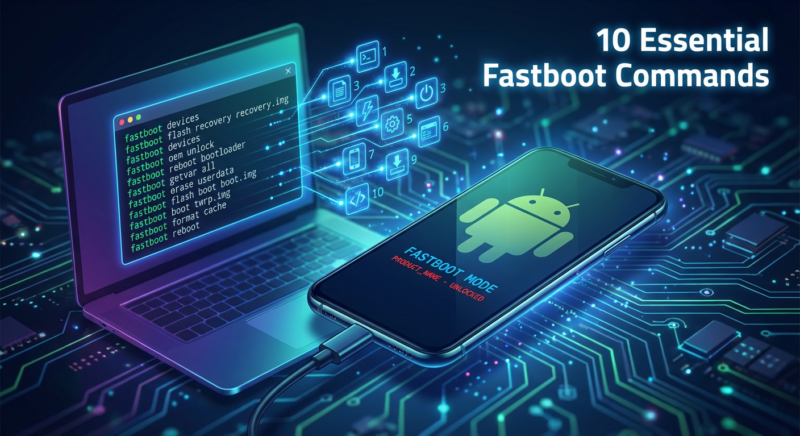
Introduction: Mastering Fastboot for Android
Android enthusiasts and developers often seek to enhance their devices’ capabilities, and Fastboot commands provide an efficient gateway for Android modding enthusiasts to do just that. Fastboot is a specialized tool that plays a crucial role in the Android ecosystem, enabling users to unlock bootloaders, flash custom ROMs, and make various modifications to their devices. With the ability to control Android firmware at a deeper level, Fastboot mode becomes indispensable for anyone looking to root Android devices or engage in device booting explorations.
Understanding the essential Fastboot commands can significantly influence how you flash Android devices or recover from common issues that may arise. While working with Fastboot requires a certain level of technical know-how, our guide to ADB and Fastboot will help ease you into this powerful tool suite. Combine this knowledge with ADB commands, and you have a robust approach to Android debugging and modification.
For those eager to delve deeper into the intricacies of Fastboot and related functionalities, authoritative guides such as Google’s Fastboot documentation offer valuable insights. Mastering these tools not only enables a seamless Android modding experience but also empowers you to troubleshoot and tailor your device to your specific needs effectively.
What is Fastboot and Why It’s Important for Android Modding
Fastboot is a critical utility in the Android ecosystem that allows you to communicate with your device when it is in Fastboot mode. This mode is specifically designed for modifying the Android firmware and executing commands directly on the device’s hardware. Fastboot is an integral part of the process when you want to flash Android images, unlock the bootloader, or install a custom ROM. It essentially acts as a bridge between your computer and your Android device during the initial stages of booting, allowing developers and power users to perform detailed modifications.
Understanding Fastboot is crucial for anyone diving into Android modding. For instance, using ADB commands in conjunction with Fastboot can provide enhanced functionality for rooting Android devices or recovering from a failure in the boot process. Fastboot commands are particularly useful when tackling the challenge of a device stuck in a bootloop or needing to revert to stock firmware.
For those interested in delving deeper into device booting processes and Android debugging, embracing the potential of Fastboot commands unlocks a plethora of customization and recovery options that define Android’s open nature. For an authoritative perspective, consider exploring further resources on Google’s official documentation to enhance your understanding and skillset in this area.

Preparing Your Device: Booting into Fastboot Mode
Before diving into the world of Android modding, it’s crucial to boot your device into Fastboot mode. This is a special mode that allows you to use various Fastboot commands tailored for flashing Android firmware, unlocking bootloaders, and more. Engaging with ADB commands via Fastboot is essential for modding and requires careful preparation to avoid unnecessary complications.
To enter Fastboot mode, the steps may vary slightly depending on your device model. Here’s a general guide:
- Power Off Your Device: Ensure your Android device is fully switched off before initiating Fastboot.
- Press the Key Combination: Typically, holding the Volume Down and Power buttons simultaneously will boot most devices into Fastboot mode.
- Connect Your Device: Use a USB cable to connect your device to a computer where ADB and Fastboot tools are installed.
For more detailed instructions, consult the manufacturer’s guide specific to your Android model. Entering Fastboot offers the advantage of executing powerful commands for Android debugging and device booting. For those looking to deepen their understanding, a comprehensive guide on advanced Fastboot techniques can be found on XDA Developers, a reputable source for Android modding enthusiasts.

Installing Fastboot Drivers on Your PC
To effectively use fastboot commands for flashing and modding your Android device, it is crucial to install fastboot drivers on your PC. Fastboot drivers are essential for ensuring seamless communication between your computer and your Android device, especially when your device is in fastboot mode.
Follow these simple steps to install fastboot drivers:
- First, download the Android SDK Platform Tools from the official Android Developers website. This package contains essential tools like ADB commands and fastboot necessary for Android modding.
- Extract the downloaded ZIP file to a location on your PC, such as your desktop or C drive.
- Connect your Android device to the PC via a USB cable, and ensure USB debugging is enabled on your device.
- Open Device Manager on your PC. You should see your device listed, possibly with an exclamation mark if the driver isn’t installed yet.
- Right-click on the device name and select “Update driver.” Choose “Browse my computer for driver software,” and navigate to the extracted platform-tools folder to complete the installation.
Installing these drivers is a step towards unlocking more advanced procedures like flashing a custom ROM or Android firmware. Additionally, you can learn more about the process of flashing stock firmware by checking out our article on How to Flash Stock Firmware on Android Devices: Ultimate Guide.
Command 1: Checking Your Fastboot Connection
Before diving into the world of Android modding, it’s essential to ensure that your computer can communicate with your Android device in Fastboot mode. Establishing this connection properly allows you to flash Android firmware, install Custom ROMs, and perform various ADB commands.
To check your Fastboot connection, first connect your device to your computer using a USB cable. Then, ensure that your device is in Fastboot mode. On Windows or Mac, open the Command Prompt or Terminal and type the following command:
fastboot devices
This command will display the list of devices connected in Fastboot mode. If your device is recognized, you’re set to proceed with modding and flashing Android; otherwise, reinstalling device drivers or checking cable connections might be necessary.
Understanding and mastering Fastboot commands not only aids in activities like unlocking the bootloader, but also ensures seamless device booting and Android debugging. Should you encounter issues, consult reliable guides on device recovery, such as this recovery mode guide on Bytefixes.com, to troubleshoot effectively.
Command 2: Unlocking the Bootloader
Unlocking the bootloader is a crucial step in Android modding, particularly if you’re looking to flash a custom ROM or root your Android device. By default, Android devices come with a locked bootloader to maintain device security and assure software integrity. However, for those seeking to modify Android firmware through Fastboot commands or other advanced methods, unlocking the bootloader is indispensable.
Before you proceed, it’s essential to understand that this process often voids the device warranty and can lead to data loss. Therefore, ensure you’ve backed up your device. To unlock the bootloader, enter Fastboot mode. You can initiate this mode using ADB commands, then run the “fastboot oem unlock” command. This command varies depending on the manufacturer’s guidelines; for some devices, it might be “fastboot flashing unlock”.
For comprehensive insights into using these commands and handling potential issues, consider checking our detailed guide on ADB commands. Furthermore, for in-depth knowledge about fastboot and its capabilities, you might find this official Android documentation useful. Remember, professional unlocking and modification should always be approached with cautious knowledge and proper tools.
Command 3: Flashing Custom Recoveries
Flashing custom recoveries is a crucial step in Android modding, allowing greater control over your device by facilitating the installation of Custom ROMs. To begin this process, your device must be in Fastboot mode. This usually requires unlocking the bootloader first, which can be done using ADB commands. Once the bootloader is unlocked, you can proceed to flash a custom recovery.
The Fastboot command to flash a custom recovery typically looks like this:
fastboot flash recovery recovery.img
In this command, “recovery.img” represents the custom recovery image you wish to install. Such recoveries often come with features to install Android firmware, manage partitions, or root Android devices. They play a significant role when your device is stuck during booting, as explored in our bootloop fixation guidance.
For more advanced users, tools for professional/authorized servicing such as TWRP recovery installation guide help in seamless flashing and managing of customized Android environments. Understanding these processes enhances your ability to troubleshoot and optimize your device, making custom recovery flashing indispensable for any serious Android enthusiast.
Command 4: Installing Custom ROMs
Installing custom ROMs is a transformative aspect of Android modding that empowers users to redefine their device’s performance and aesthetics. Custom ROMs offer tailored Android experiences, freeing your device from manufacturer-imposed limitations. To begin the process, Fastboot commands are instrumental.
Before initiating the installation of a Custom ROM, it’s crucial to ensure that your device’s bootloader is unlocked and USB debugging is enabled. You can learn more about unlocking your Android in our comprehensive guide here. With Fastboot mode engaged, the command fastboot flash system [customROM.img] allows you to flash Android firmware tailored to your preference.
However, ensure you back up essential data and understand the risks involved in flashing a Custom ROM. This process can void warranties and potentially lead to device booting issues. In case you encounter problems, check our article on device boot issues.
For professional or authorized servicing use, always rely on official resources such as the XDA Developers guide that details essential Fastboot commands for safe operation. Stay informed to enjoy a successful Android modding experience.
Command 5: Modifying the System Image
One of the key elements in Android modding is the ability to modify the system image. This fastboot command allows you to replace system files, enabling you to flash a custom ROM or tweak the Android firmware as desired. This step is crucial for enthusiasts looking to customize their devices beyond the limitations of stock firmware.
To modify the system image using fastboot, you must first have the bootloader unlocked. Additionally, ensure that your device is in fastboot mode. Here’s a quick guide to executing this command:
- Connect your Android device to your computer via USB.
- Open your terminal or command prompt and type
fastboot flash system [system.img]. - Replace
[system.img]with the path to the custom system image file you wish to flash. - Press Enter to initiate the flashing process.
Modifying the system image is a powerful technique, but it should be approached with caution. Improper execution can lead to bricking the device. For additional security, always back up your data and use only professional and authorized tools when service options are available. For a deep dive into ADB commands necessary for Android flashing, visit Google Developers’ comprehensive guide on ADB and fastboot tools.
Command 6: Flashing Boot Images
Flashing boot images is a critical step in Android modding, allowing you to customize your device’s bootloader and improve its performance. By using Fastboot commands, you can easily flash boot images, unlocking new possibilities for modding and customization. This command is especially useful when switching to a custom ROM or restoring stock firmware.
To flash a boot image, first, ensure that your device is in Fastboot mode and connected to your computer. Run the command fastboot flash boot boot.img, where boot.img is the boot image file you wish to flash. This process is crucial for device booting and maintaining system stability, making it an integral part of the Android debugging and customization process.
Before proceeding, ensure your bootloader is unlocked, as this is mandatory for flashing boot images. For a comprehensive understanding of how to perform these tasks, refer to our ultimate guide on flashing stock firmware on Android devices.
Flashing boot images can sometimes result in unforeseen issues, such as a bootloop. If you encounter such problems, you can find solutions in our external guide on ADB and Fastboot. Remember, these tools should be used responsibly and preferably by those with experience or for professional/authorized servicing use.
Command 7: Wiping Data with Fastboot
Fastboot commands are an integral part of the Android modding process, especially when it comes to wiping data from your device. This powerful feature is essential for those who wish to perform a clean install of a custom ROM or resolve persistent software issues. It’s an important step before flashing Android firmware or rooting your device. By using Fastboot, you can ensure that your device’s data is completely erased, returning it to its factory state and removing potential obstacles during mods or updates.
To wipe data using Fastboot, start by launching your device in Fastboot mode. Connect your device to a computer with ADB commands set up. Enter the command fastboot erase userdata in the terminal or command prompt. This will delete all the data from your device’s memory, so ensure you have backups before proceeding.
Remember, data wiping comes in handy, whether you are modifying Android firmware or dealing with a device booting issue. For further guidance on entering recovery modes, you can check out our guide to entering and using Android Recovery Mode. Additionally, verify the process from reliable sources such as Android’s official Fastboot Interface documentation.
Command 8: Locking the Bootloader Back
After you’ve explored the world of Android modding and experimented with custom ROMs, there might come a point when you wish to return your device to its stock condition. Locking the bootloader back is a crucial step in that process. This action essentially restores your device’s security framework, ensuring that the bootloader only allows Android firmware signed by your device’s manufacturer during device booting.
To perform this command, you would generally use the ADB commands or fastboot mode. Enter fastboot mode on your device and connect it to your computer. Then, simply enter fastboot oem lock or fastboot flashing lock, depending on your device. This step is vital when you plan to sell your phone or when running professional diagnostics, using tools like Miracle Box or Octoplus Box, to maintain the security integrity of the device.
Remember, relocking the bootloader will likely erase all data on the device, so ensure you back up all necessary data before proceeding. If you encounter issues, our ultimate guide to flashing stock firmware on Android devices can be particularly useful. For additional insights, explore more on XDA Developers, a reputable source in the Android modding community.
Command 9: Troubleshooting Common Fastboot Issues
While Fastboot is a powerful tool in Android modding, encountering issues during its use is not uncommon. Understanding how to troubleshoot these problems can save you from stressful situations. Here’s a quick guide to addressing some prevalent Fastboot issues.
- Fastboot Not Detecting Your Device: This is a frequent hurdle. Ensure your USB drivers are correctly installed. Sometimes, using a different port or swapping the cable can resolve connectivity concerns.
- Stuck in Fastboot Mode: If your device is stuck in Fastboot mode, try executing the
fastboot rebootcommand. If unresponsive, consider consulting our guide on phones stuck in a bootloop for additional solutions. - Commands Not Working: This issue might stem from syntax errors or outdated Fastboot tools. Always ensure you’re using the latest version and correctly inputting ADB commands.
For more detailed instructions on software-related issues like flashing stock firmware, you might find this ultimate guide beneficial.
When troubleshooting Fastboot, remember that these problems often involve device booting and unlocking the bootloader scenarios. It’s pivotal to have robust Android debugging skills to navigate these effectively. For a comprehensive understanding, refer to sources like the Android Developers Fastboot documentation.
Command 10: Advanced Fastboot Tips and Tricks
Fastboot isn’t just for basic flashing and rooting tasks; it offers a range of advanced features that are invaluable for Android modding aficionados. Navigating these advanced Fastboot tips and tricks can significantly enhance your Android experience, allowing for more efficient device booting, unlocking bootloader tasks, and flashing custom ROMs. For those using ADB commands regularly, mastering Fastboot’s capabilities is akin to unlocking a secret toolbox, providing pathways to more intricate Android firmware customization.
One of the lesser-known tricks is using Fastboot for Android debugging. This can be particularly useful when solving complex problems like bootloops. If you find yourself in a situation where your Android device is bricked, understanding the nuances between soft and hard bricks can save you a significant amount of time and headache. You can learn more about distinguishing and fixing such issues through our guide on understanding soft vs. hard bricks.
Another critical aspect involves the strategic use of Fastboot mode to flash Android images. Make sure to have the correct drivers installed and always back up your data. These practices ensure that you can recover your device in case something goes wrong. For comprehensive insights into flashing, platforms such as AndroidAuthority offer detailed guides and troubleshooting tips.
Conclusion: Safe and Effective Modding with Fastboot
Incorporating Fastboot commands into your Android modding toolkit offers a safe and effective way to customize and enhance your device. Whether you are looking to flash Android firmware or unlock the bootloader, Fastboot provides the precision needed for these intricate tasks. By mastering these essential commands, you not only gain control over device booting but also unlock a world of customization opportunities.
Fastboot mode serves as a crucial interface for executing ADB commands, which are pivotal in installing custom ROMs or rooting your Android device. Ensuring that you arm yourself with well-researched techniques will keep your device functional and innovative. Moreover, for professional or authorized servicing, the proper use of Fastboot can prevent the potential pitfalls associated with Android modding.
For further exploration on related techniques, consider checking out our detailed article on Top 15 ADB Commands Every Android User Should Know. Additionally, for a comprehensive overview of Android modding, external resources such as [Android Authority’s guide on customizing Android](https://www.androidauthority.com/how-to-customize-android-769071/) can be invaluable. Remember, knowledge and caution are your best tools for successful and safe modding.