

Understanding the Lifespan of an SSD
Solid State Drives (SSDs) are renowned for their speed and efficiency, but they, too, have a limited lifespan. Understanding the lifespan of an SSD is crucial to maintaining SSD health and preventing sudden failure. SSDs store data on flash memory, and like all electronic components, they wear out over time. Generally, an SSD’s lifespan is often measured in terms of terabytes written (TBW), which indicates how much data the drive can write over its lifetime before issues like performance problems arise.
Several SSD lifespan indicators can help you gauge when an SSD replacement might be necessary. For instance, if you notice SSD performance problems such as slow read/write speeds or frequent crashes, these could be symptoms of hard drive failure. Use SSD diagnostic tools to conduct an SSD health check and identify SSD problems early, potentially preventing failure. Regular checks help you detect SSD issues and solid state drive warning signs efficiently.
For deeper insights into protecting your digital assets, explore our guide on the risks of trading privacy for free using VPNs. For further understanding of SSD lifespan, visit Crucial’s SSD lifespan guide.
Common Causes of SSD Failure
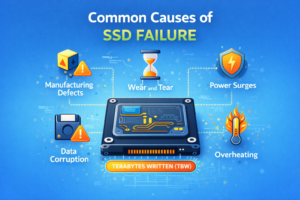
Understanding the common causes behind solid state drive (SSD) failure can help you in taking proactive measures to maintain SSD health. Unlike traditional hard drives, SSDs have no moving parts, which minimizes certain risks but introduces other unique challenges. Here are some frequent causes of SSD failure:
- Manufacturing Defects: While less common, some SSDs could be faulty right out of the box. Always ensure your SSD is from a reputable manufacturer.
- Wear and Tear: SSDs have a limited number of write and erase cycles, known as endurance. Over time, this can lead to reduced performance and eventual failure, making SSD lifespan indicators vital for health checks.
- Power Surges: Sudden power outages or electrical surges can corrupt data and damage the SSD’s internal circuits.
- Data Corruption: Unexpected shutdowns or software errors can lead to data corruption, which may present hard drive failure symptoms.
- Overheating: Excessive heat can degrade SSD components over time, leading to performance problems.
Performing an SSD health check using diagnostic tools regularly can help detect SSD issues before they become critical. Additionally, understanding how hackers might manipulate vulnerabilities through social engineering is crucial to prevent data breaches, as discussed in our article on how to prevent social engineering.
For further reading on SSD resilience and failure prevention, check out Crucial’s guide on extending SSD life.
Why Early Detection is Essential for SSDs
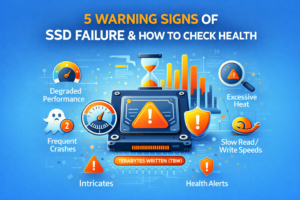
Detecting SSD issues early is crucial for maintaining the longevity and performance of your solid state drive. Unlike traditional hard drives, SSDs show unique symptoms of wear and tear that might not be immediately apparent. Early intervention can prevent SSD failure and the potential loss of critical data stored on your drive. Recognizing hard drive failure symptoms before they escalate helps you take necessary actions to safeguard your data and extend the SSD lifespan.
One key aspect of this proactive approach is regular SSD health checks using reliable diagnostic tools. These tools help identify SSD problems such as declining read/write speeds, unexpected freezes, and the appearance of solid state drive warning signs. These indicators of potential trouble should prompt immediate attention to prevent further SSD performance problems.
For professional servicing, using authorized SSD diagnostic tools ensures that problems are accurately identified and addressed. Additionally, keeping up with technology trends and common tech issues can further support your device’s health. Explore how to address other tech challenges in our guide Windows 11 Bug Fixes 2025: Common Issues & Solutions.
For more insights on SSD maintenance, refer to authoritative sources such as PCWorld’s article on SSD lifespan, which provides expert advice on extending the drive’s efficiency and longevity.
Warning Sign #1: Frequent Crashes and Freezes
Experiencing regular crashes and freezes is one of the most immediate solid state drive warning signs that could indicate your SSD might be on the verge of failure. Unlike their mechanical counterparts, SSDs are generally more resilient, but they are not immune to malfunctions. Frequent system crashes and applications freezing can be indicative of underlying SSD performance problems.
If these hard drive failure symptoms begin occurring with increasing frequency, it’s crucial to promptly conduct an SSD health check. Tools like Samsung Magician and CrystalDiskInfo can help diagnose and identify SSD problems effectively, ensuring you take appropriate steps to maintain SSD health.
Moreover, recognizing these SSD lifespan indicators early can be beneficial to prevent SSD failure, saving you from potential data loss. For those interested in safeguarding their digital assets, you might find our article on recovering deleted files an informative resource.
For an in-depth understanding of SSD issues and maintenance, consult external resources such as SanDisk’s SSD Maintenance Guide, which offers expert advice on prolonging the life of your solid state drive.
Warning Sign #2: File Read and Write Errors
Among the most telling SSD health check indicators are file read and write errors. If you notice slow file access times, unexplained data corruption, or frequent system crashes, your solid state drive might be trying to signal trouble. Such SSD performance problems often manifest as the computer struggling to execute basic commands, eventually leading to hard drive failure symptoms.
These errors can be particularly frustrating as they disrupt your workflow and compromise data integrity. To detect SSD issues early, regularly back up your data and utilize SSD diagnostic tools like Crucial Storage Executive. These tools help identify SSD problems before they escalate, allowing you to take preventive measures to maintain SSD health.
Beyond monitoring, understanding the underlying vulnerabilities that could affect your system is vital. As with any critical hardware component, prevention is key. By staying alert to these solid state drive warning signs, you can extend your SSD lifespan and minimize the risk of complete drive failure.
Warning Sign #3: Unusual Slowdowns in Performance
Experiencing unusual slowdowns in your SSD’s performance? This could be a critical indicator that your solid state drive is struggling, potentially signifying the onset of failure. While SSDs are renowned for their speed and efficiency, noticeable lag in tasks such as file transfers, application load times, or system boot times could suggest underlying issues. These SSD performance problems often precipitate more severe failures if left unchecked.
To effectively detect SSD issues and maintain SSD health, it’s crucial to conduct regular SSD health checks. Utilizing advanced SSD diagnostic tools can aid in identifying potential faults early on, allowing you to prevent SSD failure. Such tools offer real-time monitoring of your SSD lifespan indicators, providing insights and alerts should any anomalies surface.
If you’re noticing these hard drive failure symptoms, consider expanding your tech knowledge with our comprehensive guides. Our Blue Screen of Death (BSOD) troubleshooting guide might come in handy if your SSD issues escalate to system crashes.
For an authoritative guide on SSD health and diagnostics, an article by Crucial offers valuable insights into how to check your SSD’s health effectively.
Warning Sign #4: SSD Showing Read-Only Mode
One major warning sign that your SSD is about to fail is encountering it in a read-only mode. This issue indicates that while your SSD can still provide information, it has lost the ability to perform write operations. The transition to read-only mode is often a built-in safety measure designed to extend your data integrity as the SSD nears the end of its lifespan.
Read-only mode manifests as one of the critical hard drive failure symptoms. This mode can severely disrupt your workflow, making it imperative to conduct an SSD health check as soon as the symptom appears. To detect SSD issues like this, you can use SSD diagnostic tools that evaluate the drive’s current state and performance.
- Windows users can run the ‘chkdsk’ utility to scan for errors.
- Mac users might use the ‘Disk Utility’ for similar diagnostics.
To prevent SSD failure, don’t forget to back up your data regularly and consider a professional assessment if read-only mode becomes frequent. External resources like Crucial’s guide on SSD health provide further insights into maintaining SSD health and extending its lifespan by fostering good data management practices.
Warning Sign #5: Disappearing Files or Data Corruption
One of the most alarming solid state drive warning signs is the sudden disappearance of files or the corruption of your saved data. This could manifest as missing documents, pictures that no longer open, or files that have transformed into unreadable garbles. Such occurrences are not just frustrating; they are indicative of more severe SSD problems on the horizon.
While temporary data loss can occur due to software glitches, persistent issues can suggest impending hard drive failure symptoms. Sudden file vanishings or recurrent errors during file operations can be caused by internal disk errors, firmware issues, or the beginnings of hardware failure. It’s critical to maintain SSD health by monitoring these incidents closely.
To dig deeper into potential issues, make regular use of SSD diagnostic tools. These tools help detect SSD issues before they lead to significant data loss. To ensure you safeguard your valuable files, consider exploring our guide on how to recover deleted files.
For a reliable external resource on understanding SSD health and potential errors, consult Crucial’s SSD troubleshooting guide.
How to Monitor SSD Health with Built-In Tools
Maintaining SSD health is crucial to prevent sudden hard drive failure. Fortunately, modern operating systems come equipped with built-in tools to help you perform an SSD health check and identify potential issues. These simple, yet effective, diagnostic tools provide insights into the solid state drive’s performance.
One of the key steps in SSD maintenance is regularly checking the S.M.A.R.T. (Self-Monitoring, Analysis, and Reporting Technology) status. Most operating systems, like Windows and macOS, support this feature. By accessing the command prompt or disk utility, you can quickly assess your drive’s health. Look for any solid state drive warning signs such as a rise in reallocated sector count or unexpected error rates. These could be indicators of potential SSD performance problems.
To enhance your understanding of data safety, consider exploring our guide on password protection strategies.
For professional or authorized servicing, using advanced SSD diagnostic tools provided by your manufacturer can help detect SSD issues more thoroughly.
Resources like Crucial’s guide on SSD troubleshooting offer additional insights into maintaining and prolonging your SSD’s lifespan.
Regularly monitoring these SSD lifespan indicators will help you maintain SSD health and prevent SSD failure down the road.
Third-Party Software for SSD Health Checks
When it comes to maintaining and checking the health of your SSD, third-party software can be invaluable. These tools offer comprehensive SSD diagnostic capabilities, allowing you to detect SSD issues early before they manifest into severe SSD performance problems. By employing these tools, you can prevent the inconvenience and potential data loss associated with hard drive failure symptoms.
Some popular SSD diagnostic tools include CrystalDiskInfo and SSD Health Inspector. CrystalDiskInfo, for instance, provides real-time monitoring for SSD lifespan indicators, temperature, and overall health status. Similarly, SSD Health Inspector can identify SSD problems by giving detailed reports on read/write speeds, usage hours, and other critical parameters. Remember, for professional or authorized servicing use only legitimate and reputable software to maintain SSD health effectively.
To deepen your understanding of how technology plays a role in identifying solid state drive warning signs, visit our guide on Understanding Brute Force Attacks: Password Protection Strategies.
For more tips and tricks on how to check SSD health and maximize its lifespan, you can explore resources from reliable tech experts like Tom’s Hardware, which offers insights into common warning signs and preventative measures.
Steps to Take When Your SSD Shows Warning Signs
When you detect SSD issues or notice any solid state drive warning signs, it’s crucial to act promptly to prevent SSD failure. Here’s a step-by-step guide to help maintain SSD health and ensure optimal performance:
-
Back Up Your Data
The first and foremost step is to back up your critical data. Hard drive failure symptoms should always be a prompt to secure your information. Use an external hard drive or a cloud service to keep your files safe.
-
Run an SSD Health Check
Utilize SSD diagnostic tools to assess the health of your drive. These tools can help identify SSD problems early and give you insights into potential issues affecting your SSD lifespan indicators. Read more about using SSD diagnostic tools here.
-
Update Firmware and Drivers
Out-of-date firmware or drivers can lead to SSD performance problems. Regularly check for updates from your SSD manufacturer and install them promptly to enhance performance and prevent potential failures.
-
Limit Write/Erase Cycles
SSDs have a limited number of write/erase cycles. Minimizing unnecessary writes can extend your SSD’s life. Consider using file management strategies that limit excessive writing.
-
Consult a Professional
If the warning signs persist, consult a professional or authorized servicing team for their expert analysis. This step is essential to accurately diagnose and resolve any underlying issues.
By taking these proactive steps, you can effectively prevent SSD failure and extend the life of your drive. For more insights on maintaining your tech devices, visit our guide on fixing the Blue Screen of Death in Windows 11. Additionally, explore this comprehensive resource by Crucial for more on understanding SSDs.
Preventative Measures to Extend SSD Lifespan
Solid state drives (SSDs) offer rapid data access speeds but are not immune to wear and tear. Implementing preventative measures can significantly extend your SSD lifespan and avert SSD performance problems. Here are some effective strategies to maintain SSD health:
- Avoid Defragmentation: Unlike traditional hard drives, SSDs do not benefit from defragmentation. This process can accelerate wear and should be avoided.
- Enable TRIM Commands: Ensure that the TRIM command is activated in your system. TRIM helps in efficiently clearing deleted data blocks, which is crucial for optimal performance and to prevent SSD failure.
- Reduce Write Cycles: Minimize unnecessary writing by adjusting browser settings to store cache on RAM and periodically clearing app caches.
- Regular Backups: Regularly backup your data to prevent data loss if SSD issues arise. Consider using reliable backup strategies to safeguard essential information.
- Monitor Health: Utilize SSD diagnostic tools to run routine SSD health checks. This will help you detect SSD issues early on and identify SSD problems before they become critical.
By following these steps, you can reduce the likelihood of encountering solid state drive warning signs. For a comprehensive understanding of safeguarding digital assets, consider checking our detailed guide on the risks of trading privacy for free with VPNs.
For more insights on SSD care, you can explore external resources like this [SSD Management Guide](https://www.crucial.com/articles/about-ssd/how-to-increase-ssd-lifespan) by Crucial that provides a thorough overview of extending SSD lifespan.